





How to Reduce Ping in CS2: Best Tips for Faster Gameplay
How to reduce ping in CS2! You line up the perfect shot in Counter-Strike 2, click, and watch your enemy somehow survive and drop you a second later. Sound familiar? More often than not, the culprit...

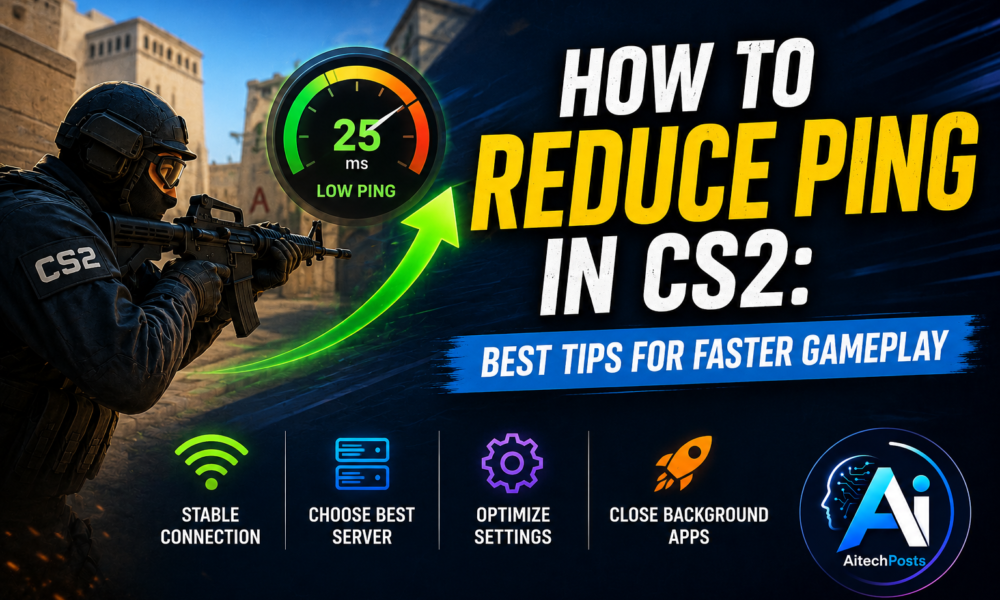
How to reduce ping in CS2! You line up the perfect shot in Counter-Strike 2, click, and watch your enemy somehow survive and drop you a second later. Sound familiar? More often than not, the culprit isn’t your aim—it’s your ping.
Table Of Content
- Use a Wired Ethernet Connection
- Choose the Closest CS2 Server
- Restart Your Router and Modem
- Stop Background Downloads and Streaming
- Close Unnecessary Background Programs
- Improve Your Wi-Fi Connection
- Disable VPNs and Proxies While Playing
- Update Network Drivers
- Limit CS2’s Maximum Matchmaking Ping
- Reduce Network Congestion
- Q1:What is a good ping for CS2?
- Q2:Why is my CS2 ping suddenly so high?
- Q3:Does Ethernet reduce ping in CS2?
- Q4:Can a VPN lower CS2 ping?
- Q5:Does higher FPS reduce ping in CS2?
- Q6:How do I fix CS2 packet loss?
Ping is the measure of how quickly data travels between your PC and the CS2 server. When it climbs too high, you get lag, delayed hit registration, rubber-banding, and that frustrating sense that the game just isn’t responding to you. Since ping is all about the quality of your connection to the server, reducing it comes down to tightening up that link.
The good news? Most ping problems have practical fixes. This guide breaks down what ping actually is, why yours might be spiking, and the exact steps you can take to get faster, smoother gameplay. Let’s get into it.
What Is Ping in CS2?
Ping, also called latency, is the time it takes for a signal to travel from your computer to the game server and back. It’s measured in milliseconds (ms). The lower the number, the faster your actions register in-game.
Here’s a rough guide to what different ping ranges feel like:
- Under 30 ms: Excellent. Your inputs feel instant.
- 30–60 ms: Good. Smooth for competitive play.
- 60–100 ms: Playable, but you may notice slight delays.
- 100+ ms: Noticeable delay. Hit registration starts to suffer.
It’s worth knowing how ping differs from two other terms people often confuse it with:
- FPS (frames per second) measures how many images your PC renders each second. This is about your hardware, not your connection.
- Packet loss happens when data fails to reach its destination. Even with low ping, packet loss can make the game feel choppy.
In short, ping is about speed of communication, FPS is about visual smoothness, and packet loss is about reliability. All three affect how the game feels, but they’re fixed in different ways.
Why Is My Ping So High in CS2?
If your ping is higher than you’d like, one or more of these issues is usually to blame:
- A slow or unstable internet connection. The foundation of low ping is a reliable connection.
- Connecting to distant servers. The farther your data has to travel, the higher your ping.
- Wi-Fi interference or a weak signal. Walls, distance, and other devices can all degrade wireless connections.
- Other devices hogging bandwidth. Someone streaming 4K video in the next room affects you too.
- Background downloads and applications. Updates and cloud syncs quietly eat your bandwidth.
- ISP routing problems. Sometimes your provider sends your data on an inefficient path.
- VPN or proxy usage. Extra stops between you and the server add latency.
- Network congestion during peak hours. Evenings tend to be busier and slower.
- Outdated network drivers or router firmware. Old software can cause connection hiccups.
Now that you know the usual suspects, let’s fix them.
How to Reduce Ping in CS2
Use a Wired Ethernet Connection
If you take away one tip from this article, make it this one. A wired Ethernet connection is far more stable than Wi-Fi because it isn’t affected by interference, distance, or signal drops.
Connect your PC directly to the router with an Ethernet cable whenever possible. Just make sure the cable itself is in good shape—damaged or very old cables can cause their own connection problems.
Choose the Closest CS2 Server
Server distance has a direct impact on latency. A server halfway across the country will always give you higher ping than one nearby.
CS2 usually picks a server for you, but you can guide the process through your matchmaking settings. Limit your acceptable ping and stick to regions close to you. Playing on distant servers just to join a specific match rarely pays off.
Restart Your Router and Modem
The classic fix works for a reason. Power-cycling your networking gear clears out temporary glitches and refreshes your connection to your ISP.
Unplug your router and modem, wait about 30 seconds, then plug them back in. If restarting only helps for a little while before ping climbs again, that’s a sign of a deeper connection issue worth investigating.
Stop Background Downloads and Streaming
Anything downloading or streaming in the background is competing with CS2 for bandwidth. Close those apps before you play.
Check Steam first—it loves to download updates at the worst times. Then pause cloud synchronization, video streaming, and any large downloads. Freeing up that bandwidth often produces an instant improvement.
Close Unnecessary Background Programs
Some programs quietly use network and system resources even when you’re not actively using them. Open Windows Task Manager (Ctrl + Shift + Esc) to see what’s running.
Look for apps consuming network or CPU resources and close what you don’t need. You can also disable unnecessary startup applications so they stop launching automatically every time you boot up.
Improve Your Wi-Fi Connection
Can’t use Ethernet? Then make your Wi-Fi as strong as possible. Start by moving closer to the router or removing physical obstacles between you and it.
If your router supports it, connect to the 5 GHz or 6 GHz band instead of 2.4 GHz. These bands are faster and less crowded. And if your router is several years old, upgrading it could make a real difference.
Disable VPNs and Proxies While Playing
VPNs route your traffic through an extra server, which usually adds latency. If you play with a VPN on, try turning it off and comparing your ping.
There’s one exception: if your ISP has poor routing to CS2 servers, a VPN can occasionally provide a more efficient path. But don’t assume it will—test it both ways and go with whatever gives you lower, more stable ping.
Update Network Drivers
Outdated Ethernet or Wi-Fi adapter drivers can cause connectivity problems that feel like high ping. Check your PC manufacturer’s website or use Windows Update to find the latest drivers for your network adapter.
Install any updates, then restart your PC if prompted. It’s a quick step that occasionally solves stubborn connection issues.
Limit CS2’s Maximum Matchmaking Ping
CS2 lets you set a maximum acceptable ping for matchmaking. Setting a sensible threshold stops the game from placing you on distant servers with high latency.
Choose a limit based on your connection quality. If you normally get around 30–40 ms, a cap in that range keeps you on nearby servers. Set it too high and you invite laggy matches.
Reduce Network Congestion
If other people or devices on your network are using it heavily, your ping suffers. Coordinate with your household or schedule large downloads for hours when nobody’s gaming.
Many modern routers include a Quality of Service (QoS) feature that prioritizes gaming traffic—worth enabling if yours has it. One important note: faster internet speed does not automatically mean lower ping. A gigabit plan won’t help if the problem is distance or routing.
Check for Packet Loss and Jitter
Low ping alone doesn’t guarantee a smooth game. Two other factors matter just as much: packet loss and jitter.
Packet loss is when data packets fail to reach their destination. Jitter is inconsistency in your ping—your latency bouncing between, say, 30 ms and 90 ms from one moment to the next.
Common symptoms of these problems include:
- Players freezing or teleporting around the map
- Actions that feel delayed even when your ping looks fine
- Shots landing inconsistently
- Network warning icons appearing in CS2
To figure out what you’re dealing with, watch your in-game net graph. Steady high ping points to latency. Fluctuating ping suggests jitter. Warning symbols and rubber-banding despite low ping usually mean packet loss.
Optimize Your PC for More Consistent Gameplay
Sometimes what feels like network lag is actually your PC struggling to keep up. A few habits help keep performance steady:
- Close unnecessary applications before launching CS2.
- Keep Windows and your network drivers updated.
- Switch to a high-performance power mode when you play.
Here’s the key thing to understand: PC performance problems can feel exactly like network lag even when your ping is perfectly normal. And the reverse is true too—increasing your FPS will not lower your internet ping. They’re separate issues, so diagnose which one you’re actually facing before changing settings.
Test Your Internet Connection
When ping stays stubbornly high, some testing can point you to the cause:
- Run a speed test to check your download and upload speeds.
- Test latency to different servers to see whether the problem follows you everywhere or is tied to one region.
- Compare Wi-Fi versus Ethernet results to see how much your connection type matters.
- Test at different times of day to spot peak-hour congestion.
If your latency stays unusually high across all these tests, the problem may be on your ISP’s end. That’s when it’s time to contact them directly.
Common CS2 Ping Mistakes to Avoid
Plenty of players sabotage their own connection without realizing it. Steer clear of these:
- Assuming faster download speed automatically means lower ping.
- Playing over unstable Wi-Fi when Ethernet is available.
- Using a VPN without checking its effect on your latency.
- Ignoring packet loss and blaming everything on ping.
- Connecting to distant servers to join specific matches.
- Running downloads while you play.
- Changing random CS2 network settings without understanding what they do.
Quick Checklist: Lower Your CS2 Ping
Short on time? Run through this list:
- ✅ Use a wired Ethernet connection.
- ✅ Select nearby servers.
- ✅ Restart your router and modem.
- ✅ Stop downloads and streaming.
- ✅ Close bandwidth-heavy applications.
- ✅ Optimize your Wi-Fi if Ethernet isn’t possible.
- ✅ Disable unnecessary VPNs and proxies.
- ✅ Update your network drivers.
- ✅ Set a suitable maximum matchmaking ping.
- ✅ Check for packet loss and ISP routing issues.
Frequently Asked Questions
Q1:What is a good ping for CS2?
A: For competitive play, aim for under 60 ms. Anything below 30 ms is excellent and feels instant. Between 60 and 100 ms is still playable, but you’ll start to notice small delays. Once you’re above 100 ms, hit registration and responsiveness take a clear hit.
Q2:Why is my CS2 ping suddenly so high?
A: A sudden spike usually comes down to a few things: you’ve been placed on a distant server, your ISP is congested during peak hours, your Wi-Fi signal has weakened, or background traffic (like a download or someone streaming) is eating your bandwidth. ISP routing problems can also cause sudden jumps.
Q3:Does Ethernet reduce ping in CS2?
A: Yes. A wired Ethernet connection provides more stable, consistent latency than Wi-Fi because it isn’t affected by interference, distance, or signal drops. It’s the single most reliable way to improve your connection for gaming.
Q4:Can a VPN lower CS2 ping?
A: It depends. Most of the time, a VPN adds latency because your traffic takes an extra hop. But if your ISP has poor routing to CS2 servers, a VPN can occasionally find a faster path. The only way to know is to test your ping both with and without it.
Q5:Does higher FPS reduce ping in CS2?
A: No. FPS (frames per second) measures how smoothly your PC renders the game, which depends on your hardware. Ping measures your connection speed to the server. Boosting your FPS makes the game look smoother but won’t change your internet latency at all.
Q6:How do I fix CS2 packet loss?
A: Start with your connection: switch to Ethernet, restart your router, and reduce network congestion from other devices. Update your network drivers, since outdated ones can cause dropped packets. If packet loss continues after all that, the issue likely lies with your ISP’s routing—contact them to investigate.
Final Thoughts on Fixing Your CS2 Ping
Lower ping comes down to a handful of high-impact habits: use a wired Ethernet connection, play on nearby servers, cut down on network congestion, and keep an eye out for packet loss. These four changes solve the majority of connection problems on their own.
Before you start tweaking settings, take a moment to diagnose what’s actually going wrong. Is it ping, packet loss, jitter, or an FPS issue? Each one has a different fix, and chasing the wrong problem just wastes time. Once you know what you’re dealing with, the solution is usually straightforward—and a smoother, more responsive game is well within reach.




No Comment! Be the first one.