






Network Jitter CS2: Causes, Fixes, and Best Solutions (2026)
Competitive gaming requires more than powerful hardware and high FPS. In games like Counter-Strike 2, even a small network problem can affect your aim, movement, and reaction time. One of the most...

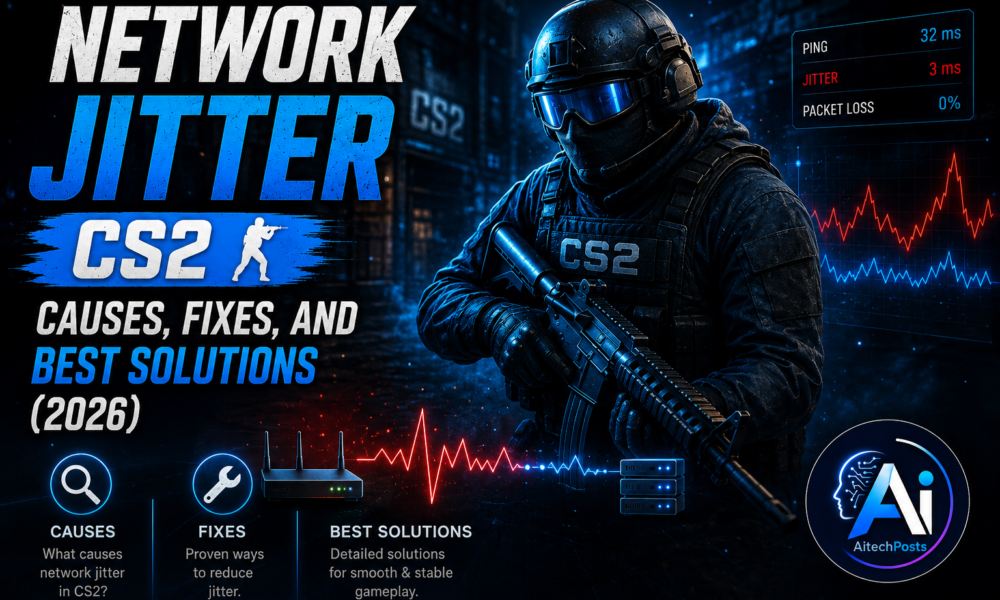
Competitive gaming requires more than powerful hardware and high FPS. In games like Counter-Strike 2, even a small network problem can affect your aim, movement, and reaction time. One of the most frustrating issues players experience is Network Jitter CS2, which causes inconsistent gameplay, delayed actions, sudden movement changes, and unstable connections.
Table Of Content
- 1. Player Teleporting and Rubber-Banding
- 2. Delayed Shooting Response
- 3. Packet Loss and Connection Instability
- 4. Unpredictable Ping Spikes
- Enable CS2 Network Information
- Test Your Internet Stability
- Keep FPS Stable
- Avoid Unnecessary Commands
- Monitor Network Performance
- Q1: What is the best way to fix Network Jitter CS2?
- Q2: Does Wi-Fi cause jitter in CS2?
- Q3: Can high FPS fix network jitter?
- Q4: Why does my CS2 ping keep jumping?
- Q5: Is packet loss worse than jitter in CS2?
- Q6: Does changing internet providers reduce CS2 jitter?
Unlike normal high ping, network jitter is not simply about having a slow internet connection. It refers to variations in packet delivery time between your computer and the game server. When packets do not arrive at a consistent speed, CS2 struggles to maintain smooth communication, creating problems such as rubber-banding, delayed shots, and unpredictable player movement.
In 2026, as competitive gaming becomes more advanced, having a stable network connection is more important than ever. Professional and casual players both need reliable internet performance to enjoy smooth Counter-Strike 2 matches.
This guide explains what Network Jitter CS2 means, why it happens, how it affects gameplay, and the best solutions to reduce jitter and improve your overall gaming experience.
What Is Network Jitter in CS2?
Network jitter in Counter-Strike 2 is the inconsistency in the time it takes for data packets to travel between your PC and the game server.
Every online game constantly sends and receives information, including:
-
Player movement
-
Shooting actions
-
Position updates
-
Grenade interactions
-
Game events
-
Server responses
For a smooth experience, these packets should arrive at regular intervals.
For example:
A stable connection may send packets like:
-
20 ms
-
21 ms
-
20 ms
-
22 ms
This creates smooth gameplay.
A connection affected by jitter may look like:
-
20 ms
-
80 ms
-
35 ms
-
150 ms
-
40 ms
Although your average ping may appear acceptable, these sudden changes create noticeable gameplay problems.
In CS2, timing is extremely important. A small delay can decide whether you win or lose a gunfight.
How Network Jitter Affects Counter-Strike 2 Gameplay
Network jitter can create several problems that directly affect your performance.
1. Player Teleporting and Rubber-Banding
One of the most common signs of jitter is rubber-banding.
This happens when the game receives delayed position updates. Your character may appear to:
-
Move backward suddenly
-
Freeze for a moment
-
Jump to another location
-
Experience movement corrections
This makes movement feel unreliable.
2. Delayed Shooting Response
In CS2, milliseconds matter.
When jitter occurs, your click may not immediately register with the server.
You may experience:
-
Shooting delays
-
Missed shots
-
Inconsistent hit registration
-
Poor weapon response
This is especially frustrating during close-range fights.
3. Packet Loss and Connection Instability
Network jitter often appears together with packet loss.
Packet loss happens when data packets fail to reach the destination.
Symptoms include:
-
Warning indicators in CS2
-
Sudden lag spikes
-
Delayed player updates
-
Unstable gameplay
A stable connection requires both low ping and consistent packet delivery.
4. Unpredictable Ping Spikes
Many players confuse jitter with high ping.
High ping means your connection is consistently slow.
Example:
Your ping stays around:
150 ms constantly
Jitter means your ping changes frequently:
30 ms → 120 ms → 50 ms → 200 ms
The second situation often feels worse because the connection is unpredictable.
Common Causes of Network Jitter CS2
Understanding the cause is the first step toward fixing the problem.
1. Unstable Internet Connection
The most common cause of network jitter is an unstable internet connection.
Your internet speed may look good, but stability matters more than download speed.
Problems can happen because of:
-
ISP congestion
-
Weak signal quality
-
Network interference
-
Poor routing
-
Local outages
A 1 Gbps connection can still experience jitter if the connection is unstable.
2. Using Wi-Fi Instead of Ethernet
Wi-Fi is convenient, but it is not always ideal for competitive gaming.
Wireless connections can experience:
-
Signal interference
-
Distance problems
-
Connection fluctuations
-
Router communication delays
Common sources of interference include:
-
Other wireless devices
-
Bluetooth devices
-
Walls
-
Nearby networks
For CS2, a wired Ethernet connection is usually the best option.
3. Background Applications Using Bandwidth
Many applications silently consume internet resources.
Examples:
-
Cloud backups
-
Streaming services
-
Game updates
-
Browser downloads
-
Software updates
When another application uses your bandwidth, CS2 may receive less network priority.
This can increase jitter and cause inconsistent gameplay.
4. Poor Router Performance
Your router manages all network traffic in your home.
An outdated or overloaded router can create delays.
Common router-related problems include:
-
Old firmware
-
Too many connected devices
-
Poor traffic management
-
Hardware limitations
Gaming performance depends heavily on router quality.
5. Server Distance and Routing Problems
The distance between your location and the CS2 server affects latency.
If you connect to a server far away, your packets travel longer distances.
Problems can also occur when your ISP uses inefficient routing paths.
You may have:
-
Good internet speed
-
Low local latency
-
But poor connection to CS2 servers
6. Network Congestion
During peak hours, internet networks become crowded.
Common busy times include:
-
Evening hours
-
Weekends
-
Holidays
When many users share the same network infrastructure, packet delivery can become inconsistent.
7. Incorrect CS2 Network Settings
Counter-Strike 2 includes networking options that affect communication between your PC and servers.
Incorrect settings can create unnecessary instability.
Optimizing these settings can improve consistency.
How to Check Network Jitter in CS2
Before fixing the problem, you should confirm whether jitter is actually causing your issues.
Enable CS2 Network Information
Counter-Strike 2 provides network performance information through console commands.
Players can monitor:
-
Ping
-
Packet loss
-
Connection quality
-
Network problems
Look for:
-
Frequent ping changes
-
Packet loss percentage
-
Network warnings
Test Your Internet Stability
Normal speed tests only measure speed.
For gaming, check:
-
Ping consistency
-
Packet loss
-
Latency variation
A good gaming connection should have:
-
Low average ping
-
Minimal packet loss
-
Stable latency
Best Solutions to Fix Network Jitter CS2
Now let’s look at practical solutions that can reduce jitter and improve gameplay.
1. Use a Wired Ethernet Connection
The simplest improvement is switching from Wi-Fi to Ethernet.
A wired connection provides:
-
Lower latency
-
More stable communication
-
Reduced interference
-
Better packet consistency
For competitive CS2 players, Ethernet remains the recommended choice.
2. Restart and Optimize Your Router
A simple router restart can solve temporary issues.
Follow these steps:
-
Turn off your router
-
Wait 30 seconds
-
Turn it back on
-
Test CS2 again
Also:
-
Update router firmware
-
Remove unnecessary connected devices
-
Place the router in an open area
3. Enable Quality of Service (QoS)
Many modern routers include QoS settings.
QoS allows you to prioritize gaming traffic.
With QoS enabled:
CS2 packets receive higher priority compared to:
-
Video streaming
-
Downloads
-
Other devices
This can significantly reduce jitter in busy households.
4. Close Background Applications
Before playing CS2, close unnecessary programs.
Check applications such as:
-
Steam downloads
-
OneDrive
-
Google Drive
-
Browser tabs
-
Streaming software
You can use Task Manager to identify programs consuming network resources.
5. Select the Closest CS2 Server
Server location plays a major role.
Choose servers with:
-
Lower ping
-
Better stability
-
Less packet loss
A server with slightly higher ping but better stability may perform better than an unstable low-ping connection.
6. Optimize CS2 Network Settings
Players can improve network performance by adjusting settings.
Useful considerations include:
-
Keeping networking options updated
-
Avoiding extreme bandwidth settings
-
Using recommended matchmaking settings
Avoid copying random configuration files from unknown sources because incorrect settings can create more problems.
7. Update Network Drivers
Outdated network drivers can affect performance.
Update:
-
Ethernet drivers
-
Wi-Fi drivers
-
Motherboard chipset drivers
Manufacturers regularly release updates that improve compatibility and stability.
8. Reduce Network Load While Gaming
For the best CS2 experience:
Avoid:
-
Downloading large files
-
Streaming 4K video
-
Uploading backups
-
Running multiple online applications
Competitive gaming requires consistent bandwidth.
9. Upgrade Your Internet Plan if Necessary
Sometimes the issue is not your setup but your connection quality.
Consider upgrading if you experience:
-
Frequent instability
-
High evening congestion
-
Packet loss
-
Poor ISP routing
A better plan should focus on reliability, not only speed.
10. Use Gaming-Focused Network Hardware
Advanced players may consider:
-
Gaming routers
-
Better Ethernet cables
-
Managed network switches
These devices can improve traffic management and reduce network problems.
However, hardware upgrades will not fix poor ISP routing or service issues.
Best CS2 Network Settings for 2026
Players looking for better performance should focus on consistency rather than simply chasing the lowest ping.
Recommended practices:
Keep FPS Stable
Although FPS does not directly control network jitter, unstable performance can make network problems feel worse.
Avoid Unnecessary Commands
Many outdated CS:GO commands no longer work correctly in CS2.
Use only current settings.
Monitor Network Performance
Regularly check:
-
Ping
-
Packet loss
-
Connection stability
Difference Between Ping, Packet Loss, and Network Jitter
| Problem | Meaning | Effect |
|---|---|---|
| High Ping | Slow communication time | Overall delay |
| Packet Loss | Missing data packets | Freezing and missing updates |
| Network Jitter | Inconsistent packet timing | Unpredictable gameplay |
Understanding these differences helps you choose the correct solution.
Is Network Jitter More Important Than Ping in CS2?
For competitive players, consistency is often more important than having the lowest possible ping.
A player with:
25 ms stable ping
may perform better than someone with:
10 ms ping with frequent spikes.
CS2 requires predictable communication between players and servers.
Stable networking creates better:
-
Aim consistency
-
Movement control
-
Reaction timing
-
Hit registration
Frequently Asked Questions About Network Jitter CS2
Q1: What is the best way to fix Network Jitter CS2?
A: The best solutions include using Ethernet, optimizing your router, reducing background bandwidth usage, selecting closer servers, and improving connection stability.
Q2: Does Wi-Fi cause jitter in CS2?
A: Yes. Wi-Fi can create jitter because of interference, signal strength issues, and wireless congestion. Ethernet usually provides a more stable gaming connection.
Q3: Can high FPS fix network jitter?
A: No. FPS affects visual smoothness, while jitter affects communication between your computer and the game server. Both should be optimized separately.
Q4: Why does my CS2 ping keep jumping?
A: Ping jumps usually happen because of unstable internet connections, network congestion, background downloads, router issues, or ISP routing problems.
Q5: Is packet loss worse than jitter in CS2?
A: Both can negatively affect gameplay. Packet loss causes missing information, while jitter creates inconsistent timing. Many players experience both together.
Q6: Does changing internet providers reduce CS2 jitter?
A: It can help if your current ISP has poor routing, congestion, or unstable service. A better ISP may provide more consistent connections.
Final Thoughts
Network Jitter CS2 is one of the biggest problems affecting competitive gameplay because it creates unpredictable delays, movement issues, and inconsistent shooting performance. While many players focus only on ping, connection stability is equally important.
Fixing jitter requires a combination of proper hardware, optimized settings, stable internet service, and good network habits.
Using Ethernet, improving router performance, reducing background traffic, and monitoring connection quality can significantly improve your Counter-Strike 2 experience in 2026.
A stable connection does not guarantee every victory, but it ensures that your skill, reaction time, and strategy are not limited by unnecessary network problems.







No Comment! Be the first one.