






How to Fix Packet Loss in CS2: Causes and Best Solutions
How to Fix Packet Loss in CS2! Counter-Strike 2 (CS2) is a fast-paced competitive shooter where every movement, shot, and reaction matters. Even a small network issue can affect gameplay performance...

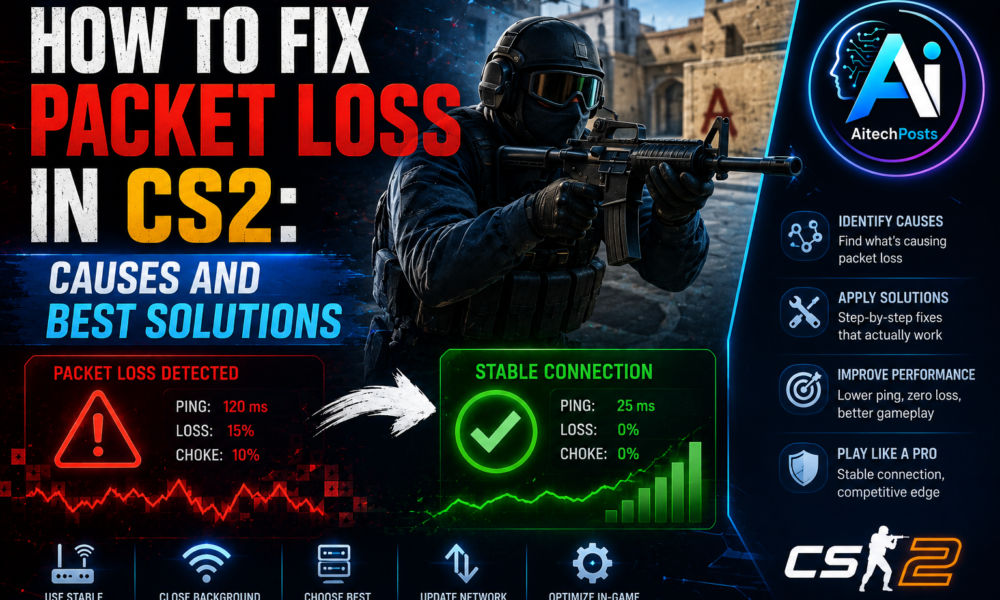
How to Fix Packet Loss in CS2! Counter-Strike 2 (CS2) is a fast-paced competitive shooter where every movement, shot, and reaction matters. Even a small network issue can affect gameplay performance and create frustrating situations such as delayed actions, sudden player movements, missed shots, or unexpected disconnects.
Table Of Content
- 1. Enable Network Graph in CS2
- 2. Test Your Internet Connection
- 3. Check CS2 Server Status
- 1. Unstable Internet Connection
- 2. Using Wi-Fi Instead of Ethernet
- 3. Network Congestion
- 4. Outdated Network Drivers
- 5. Router Problems
- 6. ISP Routing Issues
- 1. Use a Wired Ethernet Connection
- 2. Restart Your Router and Modem
- 3. Close Background Applications
- 4. Select the Best CS2 Server Region
- 5. Update Network Drivers
- 6. Update Router Firmware
- 7. Change DNS Settings
- 8. Reset Network Settings
- 9. Optimize Router Settings for Gaming
- 10. Contact Your Internet Provider
- Change Network Buffer Settings
- Use a Gaming VPN
- Check Firewall and Security Software
- Ping
- Lag
- Packet Loss
- Q1: Why do I get packet loss only in CS2?
- Q2: Can high FPS cause packet loss in CS2?
- Q3: Does changing DNS fix CS2 packet loss?
- Q4: Is Ethernet better than Wi-Fi for CS2?
- Q5: Can a VPN reduce packet loss in CS2?
One of the most common network problems faced by CS2 players is packet loss. When packet loss occurs, the data sent between your computer and the game server does not arrive correctly. This creates interruptions in communication and can seriously impact your gaming experience.
If you are experiencing lag spikes, rubber-banding, delayed hit registration, or inconsistent gameplay, learning how to fix packet loss in CS2 can help you restore a smoother and more stable connection.
This guide explains what causes packet loss in CS2, how to identify the problem, and the most effective solutions to reduce or eliminate packet loss while playing.
What Is Packet Loss in CS2?
Before learning how to fix packet loss in CS2, it is important to understand what packet loss actually means.
When you play CS2 online, your computer constantly exchanges small pieces of data called packets with the game server. These packets contain important information, including:
- Player movements
- Shooting actions
- Position updates
- Game events
- Server responses
Packet loss happens when some of these data packets fail to reach their destination or arrive too late.
For example, if you move your character or fire a weapon, your computer sends that information to the server. If those packets are lost, the server may not receive your action immediately, causing delays or inaccurate gameplay results.
Common signs of packet loss in CS2 include:
- Characters teleporting or moving unnaturally
- Delayed shooting response
- Shots not registering properly
- Sudden lag spikes
- Network warning symbols appearing in-game
- Voice communication problems
- High ping fluctuations
Unlike normal high ping, packet loss affects the reliability of your connection. A low-ping connection can still suffer from packet loss if data transmission is unstable.
How to Check Packet Loss in CS2
Before applying solutions, you should confirm whether packet loss is actually the problem.
1. Enable Network Graph in CS2
CS2 provides network information through console commands.
Follow these steps:
- Open Counter-Strike 2.
- Enable the developer console from settings.
- Press the console key.
- Enter:
nginx
CopyEdit
cq_netgraph 1
The network graph displays important information such as:
- Ping
- Connection stability
- Packet loss
- Network performance
If packet loss appears consistently during matches, your connection needs troubleshooting.
2. Test Your Internet Connection
You can also check packet loss outside the game.
Open Command Prompt on Windows and run:
nginx
CopyEdit
ping google.com -n 50
Look for packet loss percentage in the results.
If you see packet loss outside CS2, the issue is likely related to your internet connection, router, or network provider.
3. Check CS2 Server Status
Sometimes packet loss is caused by problems on the game server side.
If multiple players are experiencing connection issues, the problem may not be related to your setup.
Common Causes of Packet Loss in CS2
Understanding the reason behind packet loss makes it easier to find the right solution.
1. Unstable Internet Connection
The most common cause of packet loss in CS2 is an unstable internet connection.
Even if your internet speed is high, connection quality matters more than download speed. Online gaming requires a consistent connection with low latency.
Possible issues include:
- Weak Wi-Fi signals
- Network congestion
- ISP problems
- Damaged cables
- Router issues
A fast but unstable connection can still create packet loss.
2. Using Wi-Fi Instead of Ethernet
Wireless connections are convenient but can introduce instability.
Wi-Fi signals can be affected by:
- Distance from the router
- Walls and obstacles
- Other wireless devices
- Signal interference
For competitive CS2 gameplay, a wired Ethernet connection is usually more reliable because it provides direct communication between your PC and router.
3. Network Congestion
When multiple devices use the same internet connection, bandwidth competition can increase packet loss.
Examples include:
- Streaming videos
- Downloading large files
- Cloud backups
- Other people gaming online
Too much network traffic can reduce connection stability during CS2 matches.
4. Outdated Network Drivers
Your computer’s network adapter requires proper drivers to communicate efficiently with your router.
Old or corrupted drivers may cause:
- Connection drops
- Poor network performance
- Increased latency
- Packet loss
Keeping network drivers updated can improve stability.
5. Router Problems
Your router manages all network communication. If it is overloaded or outdated, it may cause packet loss.
Common router-related issues include:
- Overheating
- Old firmware
- Incorrect settings
- Hardware limitations
Restarting or updating your router can often solve temporary problems.
6. ISP Routing Issues
Sometimes your internet provider may have inefficient routes between your connection and CS2 servers.
In this situation:
- Your internet may work normally
- Websites may load correctly
- But online games experience packet loss
This happens because gaming traffic follows specific network paths.
How to Fix Packet Loss in CS2
Now that you understand the causes, let’s look at effective methods for fixing packet loss in CS2.
1. Use a Wired Ethernet Connection
Switching from Wi-Fi to Ethernet is one of the most effective solutions.
A wired connection provides:
- Lower latency
- More stable data transfer
- Reduced interference
- Better gaming reliability
If possible, connect your gaming PC directly to your router using an Ethernet cable.
2. Restart Your Router and Modem
A simple restart can fix many temporary network problems.
Follow these steps:
- Turn off your router and modem.
- Wait for 30–60 seconds.
- Turn them back on.
- Wait until the connection becomes stable.
- Launch CS2 and test again.
Restarting clears temporary errors and refreshes the network connection.
3. Close Background Applications
Applications running in the background may consume bandwidth.
Before playing CS2, close programs such as:
- Torrent applications
- Cloud synchronization tools
- Streaming software
- Large downloads
- Browser tabs using heavy resources
Reducing background network usage can improve game performance.
4. Select the Best CS2 Server Region
Playing on distant servers increases the chance of unstable connections.
CS2 automatically selects servers, but you can improve your experience by:
- Choosing nearby server regions
- Avoiding servers with high latency
- Using matchmaking settings appropriately
A closer server generally provides better stability.
5. Update Network Drivers
Keeping your network drivers updated can help prevent connection issues.
To update drivers:
- Open Device Manager in Windows.
- Expand Network Adapters.
- Right-click your network adapter.
- Select Update Driver.
- Install available updates.
Updated drivers improve compatibility and performance.
6. Update Router Firmware
Router manufacturers regularly release firmware updates to improve stability and security.
Check your router manufacturer’s website or admin panel for available updates.
Firmware updates may fix:
- Connection drops
- Performance problems
- Compatibility issues
7. Change DNS Settings
DNS usually does not directly remove packet loss, but changing DNS servers may improve connection reliability in some situations.
Popular DNS options include:
- Google DNS
- Cloudflare DNS
- OpenDNS
To change DNS:
- Open Network Settings.
- Select your internet connection.
- Open DNS settings.
- Enter your preferred DNS addresses.
- Restart your connection.
8. Reset Network Settings
Windows network settings can sometimes become corrupted.
You can reset them by:
- Opening Windows Settings.
- Going to Network & Internet.
- Selecting Advanced Network Settings.
- Choosing Network Reset.
After resetting, restart your computer and reconnect to the internet.
9. Optimize Router Settings for Gaming
Some router settings can improve gaming performance.
Consider enabling:
- Quality of Service (quality of service)
- Gaming mode
- Device prioritization
Quality of service allows you to prioritize CS2 traffic over less important network activity.
10. Contact Your Internet Provider
If packet loss continues after troubleshooting, your ISP may be the cause.
Contact your provider and explain:
- You experience packet loss during online gaming
- Your connection drops packets consistently
- You need a line quality check
They may identify:
- Network problems
- Damaged cables
- Routing issues
- Signal problems
Advanced Fixes for CS2 Packet Loss
For experienced users, advanced solutions may help further.
Change Network Buffer Settings
Some players adjust network settings to improve consistency.
However, incorrect configuration can make performance worse. Always understand what each setting does before changing advanced options.
Use a Gaming VPN
A gaming VPN can sometimes improve routing if your ISP has poor connections to CS2 servers.
However, VPNs can also increase latency, so results vary depending on your location and provider.
Check Firewall and Security Software
Security programs may sometimes interfere with game traffic.
Make sure CS2 is allowed through:
- Windows Firewall
- Antivirus software
- Network protection tools
Difference Between Ping, Lag, and Packet Loss
Many players confuse these terms.
Ping
Ping measures the time required for data to travel between your computer and the server.
Higher ping means more delay.
Lag
Lag is the visible effect of network problems, such as delayed movement or slow responses.
Packet Loss
Packet loss occurs when data packets fail to reach the server.
A player can have:
- Low ping but high packet loss
- High ping but no packet loss
Understanding the difference helps identify the correct solution.
Preventing Packet Loss in Future CS2 Matches
After fixing the issue, follow these practices to maintain a stable connection:
- Use Ethernet whenever possible
- Restart your router regularly
- Keep drivers updated
- Avoid heavy downloads while gaming
- Choose nearby servers
- Monitor network performance
- Use reliable internet equipment
A stable connection is just as important as good hardware when playing competitive games.
Frequently Asked Questions (FAQs)
Q1: Why do I get packet loss only in CS2?
A: Packet loss in CS2 may happen because of server routing issues, ISP problems, network congestion, or unstable connections. Other applications may work normally because gaming requires real-time data communication.
Q2: Can high FPS cause packet loss in CS2?
A: No. FPS problems are related to your computer’s performance, while packet loss is a network issue. However, both can create gameplay problems that feel similar.
Q3: Does changing DNS fix CS2 packet loss?
A: DNS changes may improve connection routing in some cases, but DNS is not a guaranteed solution for packet loss. The main causes are usually network instability, ISP issues, or hardware problems.
Q4: Is Ethernet better than Wi-Fi for CS2?
A: Yes. Ethernet generally provides a more stable connection with lower interference, making it better for competitive games like CS2.
Q5: Can a VPN reduce packet loss in CS2?
A: A VPN may help if your ISP has poor routing, but it can also increase ping. Results depend on your location and network conditions.
Conclusion
Learning how to fix packet loss in CS2 can significantly improve your competitive gaming experience. Unstable internet connections, Wi-Fi interference, network congestion, router problems, or ISP issues usually cause packet loss.
The most effective solutions include using Ethernet, restarting network equipment, updating drivers, optimizing router settings, reducing background traffic, and checking your internet provider’s connection quality.
A smooth CS2 experience requires both strong hardware and a reliable network connection. By identifying the cause and applying the right fixes, you can reduce packet loss, improve gameplay consistency, and enjoy more responsive matches.









No Comment! Be the first one.